Convert images to WebP — in bulk, in your browser

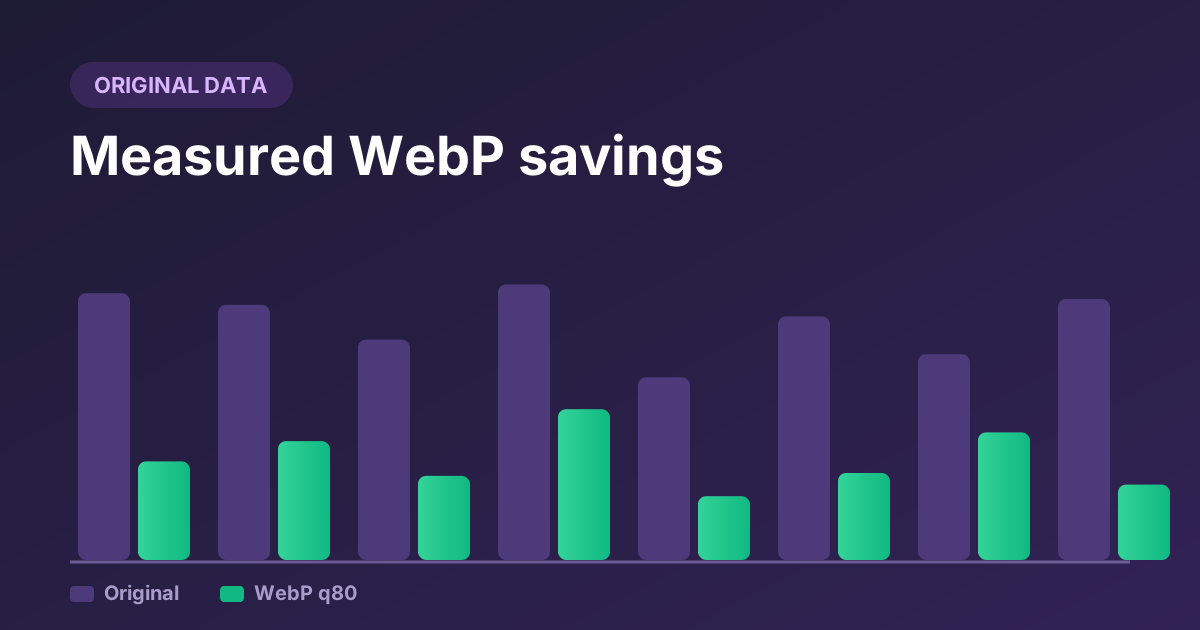
Drop in up to 30 JPEGs, PNGs or GIFs and get back WebP or AVIF files, resized and compressed to your settings. Every step runs locally through your browser's own image encoder, so nothing is uploaded, nothing is stored, and there is no sign-up. When it finishes you get the real byte count for each file — not an estimate. In our own 15-image test the median file lost 63% of its weight at quality 80.

Image converter

Conversion settings

80 is the usual sweet spot. Ignored for PNG.

%

Aspect ratio is always preserved.

Nothing queued yet. Your files stay on this device — see how that works.

How to use the converter

Three steps, and nothing leaves your device along the way.

  1. Add your images

    Drag a whole folder's worth of JPEGs, PNGs or GIFs onto the drop zone, or click to browse. Files queue up so you can adjust settings before committing.

  2. Pick format and quality

    WebP at quality 80 suits most web images. Resize by percentage or cap the maximum width — serving a 4000px file into a 800px slot is the most common waste we see.

  3. Check, then download

    Every row shows the real before and after size. Use Compare to wipe between the two versions at full size, then download one file or the whole batch as a ZIP.

Which output format should you pick?

All four options in the tool are useful for different jobs. This is the short version; the long version is in our format comparison guide.

Comparison of output formats offered by the WebPMagic converter
FormatTransparencyTypical size vs JPEGBrowser supportReach for it when
WebP Yes25–65% smallerUniversal Default choice. Safe everywhere, good compression, keeps alpha.
AVIF YesOften 20% smaller than WebPVery good, not universal Large hero photos where every kilobyte counts and you can serve a fallback.
JPEG No — flattened to whiteBaselineUniversal Email, older CMS uploaders, or anything that chokes on modern formats.
PNG YesUsually largerUniversal Screenshots, flat graphics and line art where you want zero loss.

Why convert images to WebP

WebP usually produces smaller files than JPEG or PNG at the same visual quality. Here is what that actually buys you.

Processed in your browser

Most online compressors upload your files to a server first. This one doesn't — it uses the browser's HTML5 Canvas API to do the work locally. Handy for unreleased product shots, client mockups, or anything under NDA.

Faster loads on mobile

On phones and slow connections, image weight is usually the main thing between a tap and a rendered page. Smaller files download faster, so visitors wait less — which tends to cut bounce rates on image-heavy pages.

Good quality at smaller sizes

WebP uses predictive coding, which generally avoids the blocky artifacts JPEG shows at low quality. Around quality 80 the result is usually hard to distinguish from the original — use the Compare button to check that on your own files rather than taking our word for it.

How the conversion actually works

Most online image compressors upload your file to a server, process it there, and send the result back. That works, but it means waiting on a round trip and trusting a third party with your image.

WebPMagic does the conversion in the browser instead. When you add a file, JavaScript decodes it — using createImageBitmap() where available, so EXIF rotation is honoured — and draws it onto an off-screen <canvas> at your chosen size. Redrawing also discards the EXIF blocks and embedded colour profiles that bloat camera files. The canvas is then handed to canvas.toBlob(), which invokes the browser's built-in encoder for the format you picked.

Because the encoder is the browser's, output can differ very slightly between Chrome, Firefox and Safari on the same settings. The difference is normally a few percent in file size and invisible on screen — and it's the same encoder those browsers use to display the result, so nothing is lost in translation.

Two trade-offs worth knowing

Memory, not bandwidth, is the ceiling. Everything runs locally, so the practical limit is your device's RAM rather than a server quota. A modern laptop handles a 50 MB photo without complaint; an older phone may pause on a print-resolution file. Scale it down first if that happens.

Re-encoding can backfire. Converting an already-compressed file at high quality occasionally produces a larger result, because the encoder faithfully preserves the artifacts already baked in. The savings column tells you the moment that happens, and dropping quality to 75–80 almost always fixes it.
Converter questions

Are my images uploaded to a server?
No. The converter decodes and re-encodes each file with your browser's own image encoder, so the file never leaves your device. You can verify it: open the Network tab in DevTools before converting and you will not see a request carrying image data.
How many images can I convert at once?
Up to 30 files per batch, with a 50 MB ceiling per file. Those limits exist to protect your device's memory, not because of a server quota — there is no server in the path.
Why did my WebP come out larger than the original?
Your source was already heavily compressed. Re-encoding an aggressive JPEG at high quality asks the encoder to preserve every existing compression artifact faithfully, which can cost more bytes than it saves. Drop the quality to 75–80 and it will almost always shrink.
Does WebP keep PNG transparency?
Yes. WebP supports an alpha channel, so a logo with a transparent background stays transparent — usually at a fraction of the PNG size. If you convert to JPEG instead, transparency is flattened onto white, because JPEG has no alpha channel.
Why is the AVIF option sometimes disabled?
AVIF encoding from a canvas is only available in some browsers. The tool probes for it on load and disables the option rather than silently handing you a PNG with the wrong file extension. Chrome and Edge generally support it; Safari and Firefox usually do not.

More answers on the full FAQ page, and definitions for anything unfamiliar in the glossary.

Latest guides

Original Data

We Converted 15 Real Images to WebP: Here’s What Actually Got Smaller

We stopped quoting the “25–34% smaller” averages and ran our own test: 15 real photos, screenshots, and logos through WebP at quality 80. The median file shrank 63%, the set went from 6.1 MB to 1.5 MB, and one image got bigger. Here are all the numbers.

11 min read

Original Data

What Quality Setting Should You Actually Use? A Quality Ladder Test

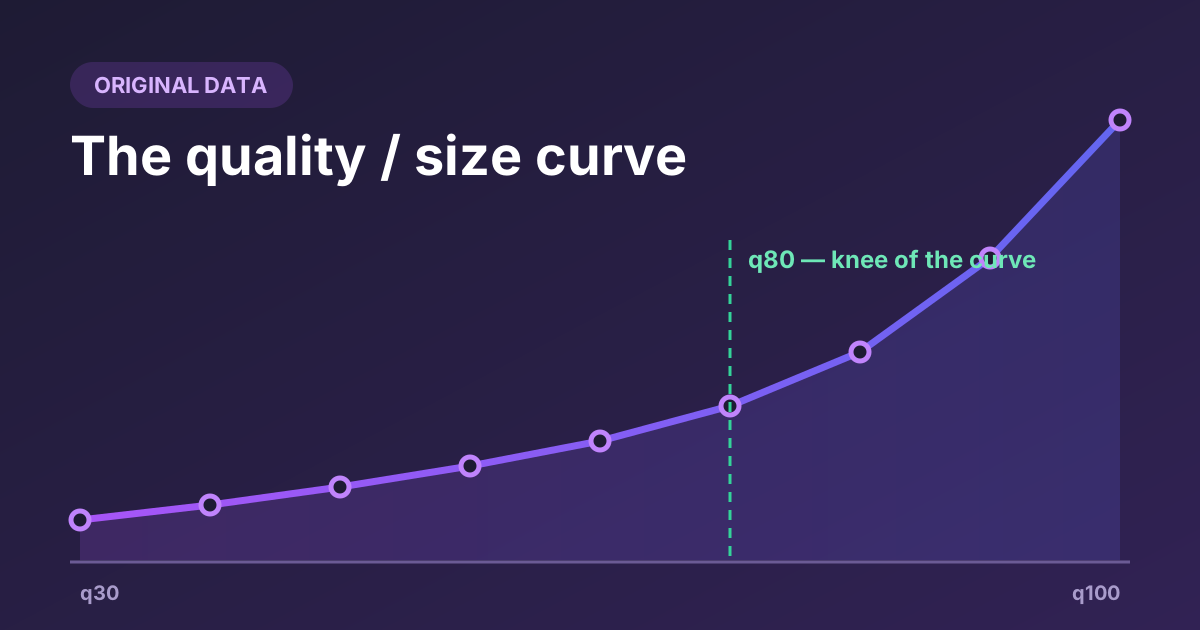
Everyone says “use quality 80” and nobody says why. We re-encoded the same four images at nine quality steps from 30 to 100 and recorded the file size at each stop, so you can see exactly where the curve flattens and where the artifacts start.

10 min read

Troubleshooting

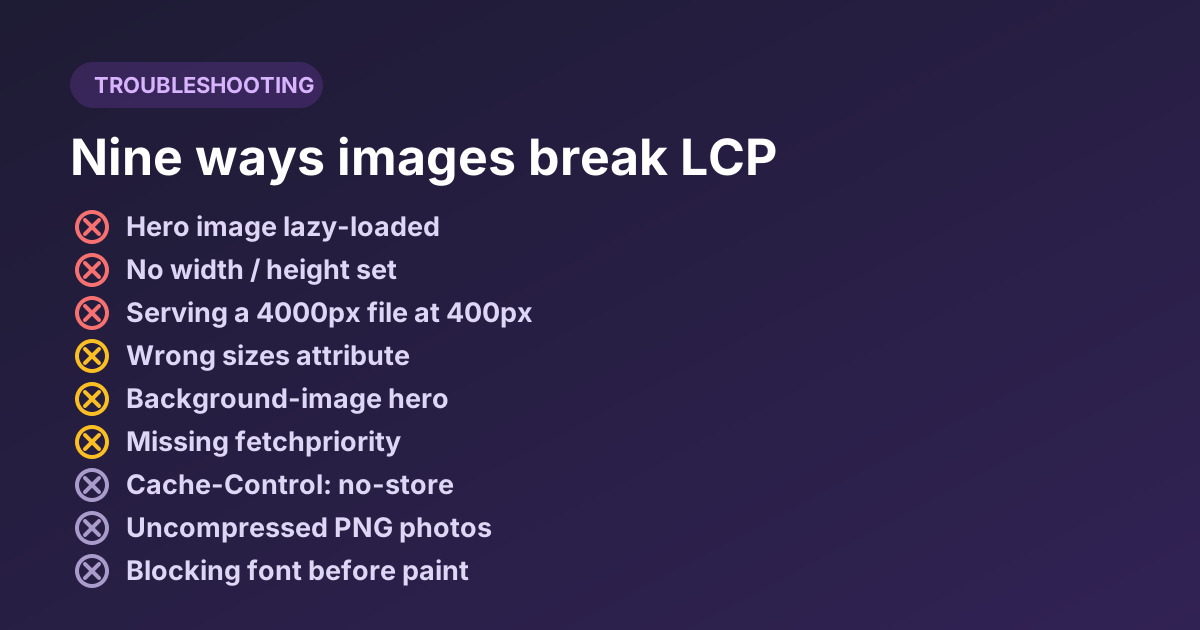
Nine Image Optimization Mistakes That Quietly Cost You LCP

A diagnostic guide, not a listicle. Each mistake comes with the symptom you would see in DevTools or PageSpeed Insights, why it happens, and the exact fix — including the three that show up on almost every site we look at.

12 min read

Image Formats

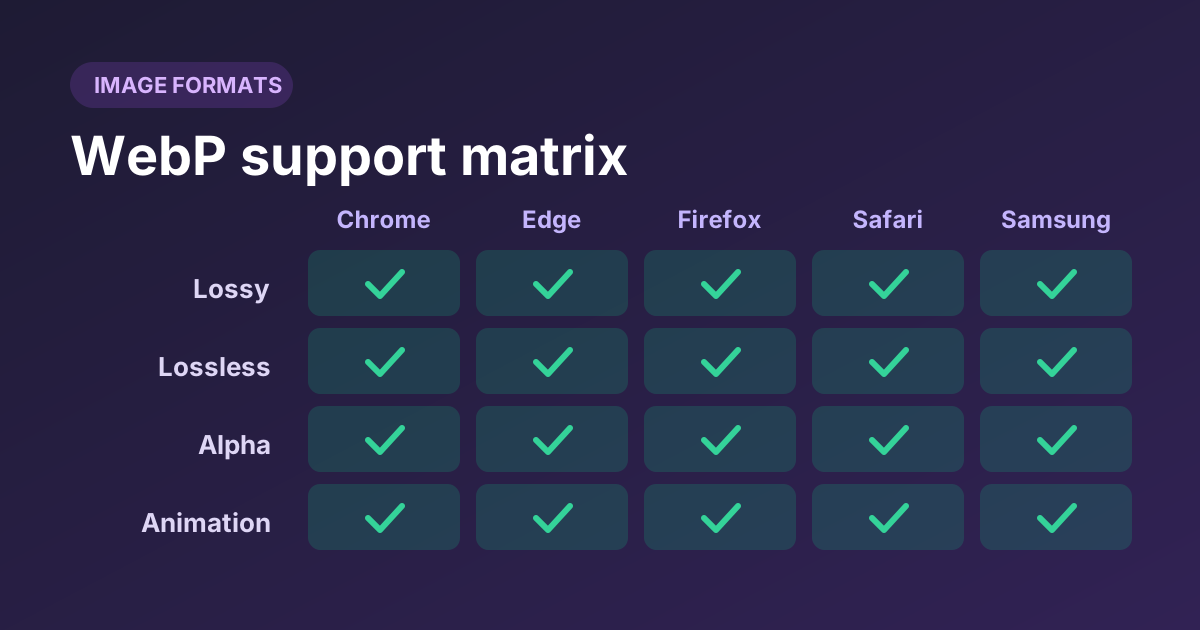
WebP Browser Support in 2026 — and How to Ship a Fallback Anyway

WebP support is effectively universal in browsers now, but browsers are not the only thing that consumes your images. Here is the current support matrix, the places WebP still breaks, and four fallback patterns ranked by how much work they cost you.

10 min read

Image Formats

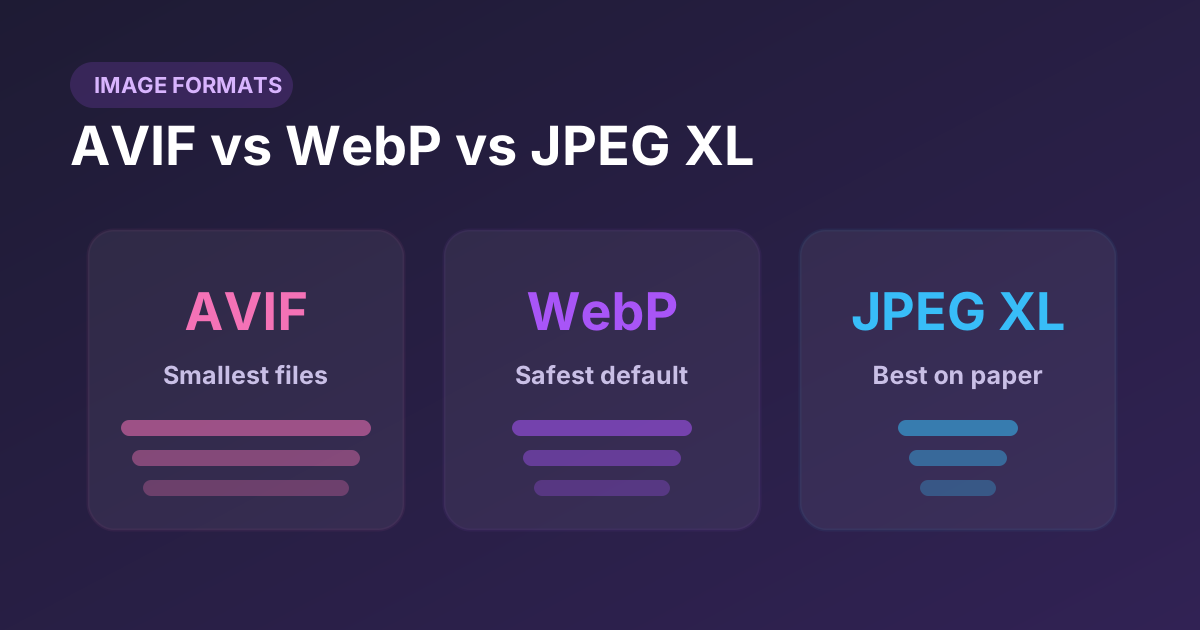
AVIF vs WebP vs JPEG XL: Choosing a Next-Gen Image Format

WebP is no longer the only modern format worth your attention. We compare AVIF, WebP, and JPEG XL on compression, browser support, encode cost, and the features that actually decide the choice — then give you a decision table.

11 min read

Responsive Design

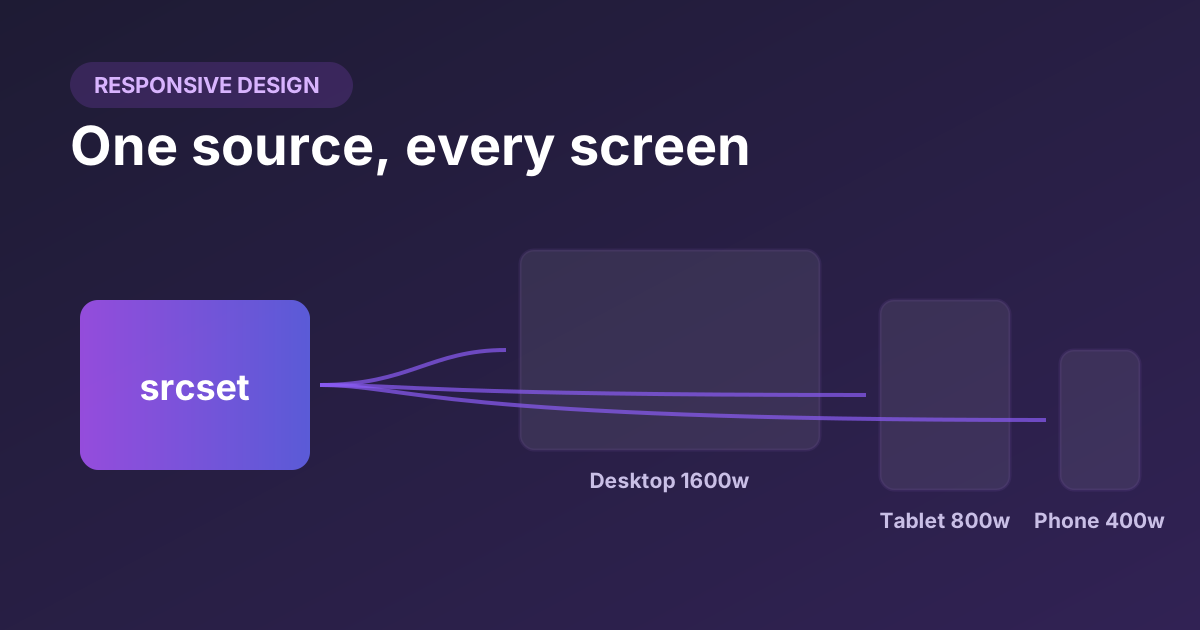
Responsive Images Done Right: Mastering srcset, sizes, and picture

Serving one giant image to every device wastes bandwidth on phones and looks blurry on retina displays. Learn how srcset, sizes, and the picture element let the browser pick the right file for every screen — and why sizes is the attribute everyone gets wrong.

12 min read